
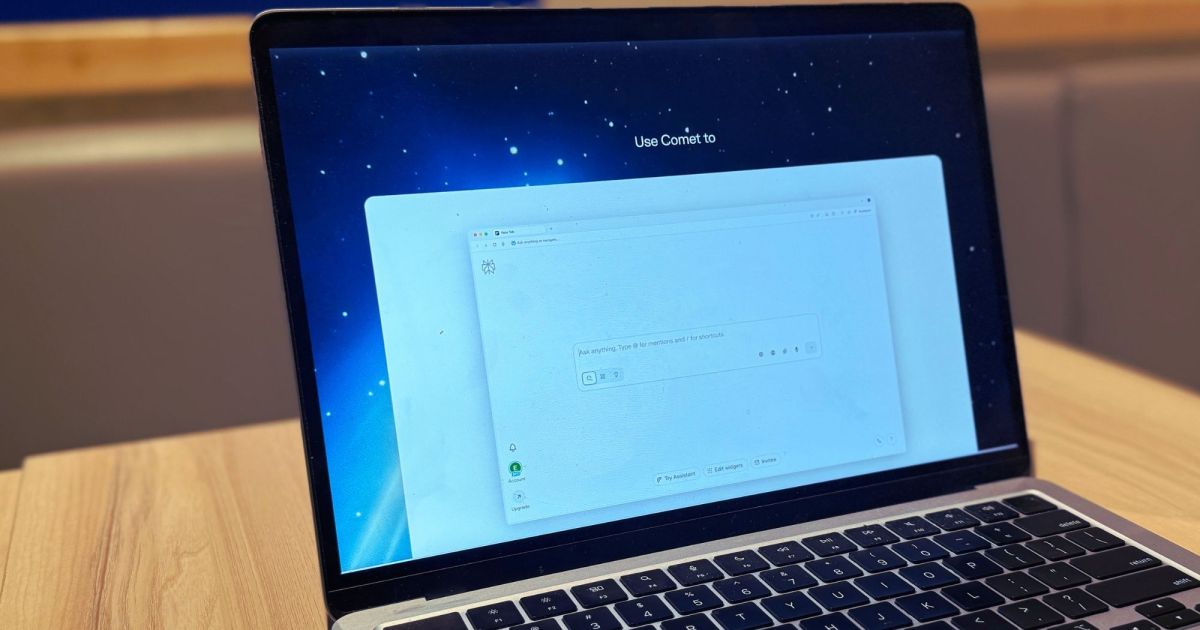
The internet is changing rapidly. The blue links we saw on the search are going away, and people are increasingly finding the answers spelled out like a textbook using AI chatbots. As a result, we are seeing AI agents becoming an integral part of web browsers. And whether you like it or not, the trend is only going to gain fervor.
We have moved into a new era of browser wars, and it seems the upstarts are leading the way forward. Dia is among those AI-first browsers, and I’ve grown quite fond of it. About a month ago, I finally got my hands on Perplexity’s invite-only Comet browser, and ever since, I haven’t looked elsewhere. And if you manage to get in, you’ll likely have a similar experience. Let’s dive right into it.
What is Comet?
Nadeem Sarwar / Digital Trends
Comet puts the Perplexity knowledge engine front and center of the web browsing experience. But it’s so much more than that. Here’s the fun part. It’s built atop the same Chromium foundation as Google’s Chrome, which means importing all your data and extensions is a cakewalk. Home sweet home, if I might say so, but with a different coat of paint.
But the foundation is also where the similarities end. Comet is a fundamentally different browsing beast. Instead of landing you on Google Search, all your searches and queries are answered by the Perplexity engine. The design (especially in dark mode) is pretty elegant, and the widgets system on the home page is also pretty neat.
Nadeem Sarwar / Digital Trends
It has its own discover feed populated by content you might like, tucked neatly into a sidebar on the left. Sitting underneath Discover is Spaces, which is essentially a Workspace where your searches and chats are neatly organized. Think of them as user profiles, but one where you can save your files, links, pick a specific AI model for tasks, connect with apps, and set custom instructions for web browsing.
Each space can be dedicated to finding information from specific sources, such as the web, research papers, social media sites, cloud drives, and local files. There are a bunch of preset templates to pick from, as well. These spaces are shareable and support collaboration, too. Think of it as a browser-within-a-browser situation, each with its own hyperspecific environment for source material and task execution.
Nadeem Sarwar / Digital Trends
I have created a few for my reporting duties, science research, and hobbies. It’s a lovely concept, and I wish more browsers offered the flexibility of creating such environments. I prefer Gemini for work, and the ability to pick it from the model selector is appreciated. You can, however, pick between various Claude, GPT, and Grok AI models, as well.
The intelligence
The most striking element of Comet is the namesake Assistant, which lives in a collapsible sidebar. Think of it as a browsing assistant to handle accessory search or queries, saving you the hassle of opening a separate tab for follow-up queries. For example, while reading an article, if you come across a term or passage that requires a bit of background info or explanation, you can get it all in the sidebar without switching to another tab.
Shortcuts are my favorite feature in Comet. Nadeem Sarwar / Digital Trends
As a neat bit of convenience, whatever portion of text you highlight is automatically picked by the AI assistant for contextual background. So, let’s say you select a paragraph. All you have to do is write “explain” or “background info” in the sidebar, and the AI assistant will comply with your request. It will also honor the sources you want to reference for doing the background research for you.
Talking about research, you can directly toggle to the Deep Research mode on the central search bar of Comet’s home page, or create custom projects. Additionally, you can upload files for analysis, specify the search database, and launch your connectors to autonomously handle tasks across other services.
Nadeem Sarwar / Digital Trends
Think of connectors as bridges that let Comet’s AI interact with third-party services and get work done. For now, the available options are Notion. GitHub, Gmail, Outlook, Dropbox, WhatsApp, and Google Drive. These connectors are a key element of Comet’s automation superpowers and allow you to get multi-step work done across these platforms.
For example, I typed the following command in the universal search bar of Comet:
“What events on my calendar are lined up? Check my inbox for any interview commitments in the coming week.”
The AI assistant quickly went through my Google Calendar and Gmail conversations, and accurately picked up the seminar sessions, team meetings, and an interview lined up. It even provided useful context in brief, such as the topic of the meeting, the person involved, and a bit of background information. On a few occasions, it fumbled the name of the person, but those instances are pretty rare. Have a look:
Nadeem Sarwar / Digital Trends
My personal favorite element of Comet is the shortcuts system. Again, the focus of these shortcuts is to automate boring tasks, without having to write a long command each time. Creating these shortcuts is as easy as describing your requirements in plain language, and you’re set.
Take a look at a shortcut that I made to go through all the pitches I get for testing software and hardware products. All I have to do is give the shortcut a name, summon it with a simple command, followed by any additional input I want to provide.
Check out the response I got after simply typing “/pitch 30 days” in the universal search bar:
Nadeem Sarwar / Digital Trends
Another cool feature is tab awareness. Simply put, whatever tab is open at any given moment, the AI assistant is aware of it. So, if you’re watching a YouTube video, you can see the key takeaways or summary of the clip in the sidebar. The assistant can also pull information from multiple tabs at the same time using the “@” function.
For example, if you have multiple tabs open across a shopping site, the assistant can compare all the items and present the key information as a comparison table. Multi-tab actions come in handy while shopping, activity planning, or simply creating reports from across different sources.
The automation
One of the most promising aspects of Comet is the agentic side of it. In a nutshell, for tasks that require a lot of back-and-forth browsing and clicking, the built-in assistant can handle the drudgery. All you need to do is describe the task at hand, and the AI will jump into action, think through each step, and get the job done. From shopping and ticket booking to web analysis and research, it will do the needful.
Nadeem Sarwar / Digital Trends
As a test, I asked the agent to pick high-quality ingredients for making chicken fajita and to prefer the fastest delivery, while at it. The AI agent took only six minutes, searched through Amazon’s catalog, and placed an order. It all ran in the background tab, and I only discovered that the order was placed after seeing a Gmail notification for Amazon orders.
It got a lot of things right. For example, Comet only picked ingredients with high star ratings and good reviews. Next, it automatically selected the items that deliver the quickest to my address. Third, it accurately identified all the required ingredients and intelligently switched between Amazon’s main store and the Amazon Fresh catalog to pick fresh items.
Now, it can get a tad over-ambitious in a few aspects. For example, I didn’t specify the AI assistant to prefer cash on delivery as the payment mode. I did not explicitly ask to place the order, as my query was simply to find items and prefer the fastest delivery route, hoping to see them in the cart for final approval.
Nadeem Sarwar / Digital Trends
Third, Comet never asked for the quantity of any ingredient or how many people I wanted to feed, and simply went ahead and placed orders for each item. I should have done that, but then, an intelligent assistant should seek clarity before it gets started. But overall, it was a pleasant surprise to see the AI agent handle a task end-to-end.
A rewarding leap of faith
Comet redefines how we interact with a web browser. Instead of keywords and clicks, Comet takes an approach where you talk with the browser using natural language commands. For anyone looking to de-Google their browsing experience, it offers a bright opportunity to make that leap.
Nadeem Sarwar / Digital Trends
In case you’re worried about the deep cross-platform access that it requires, you can breathe a sigh of relief knowing that all your core data — URLs, search queries, cookies, open tabs, and site permissions — are stored locally on your computing machine.
My only core concern is that Comet is fairly demanding on the system resources, and makes the system struggle almost as much as Chrome. Comparatively, the Dia browser quite literally feels like a breeze. However, if you have a mid-tier PC or a MacBook with at least 16GB of RAM, Comet won’t run into any performance bottlenecks.
On the contrary, it might just win you over. It certainly made me switch away from Chrome, and I don’t see myself returning to Google’s browser anytime soon in the near future.